How to see players in snow in Rust
Updated · PixelForge team
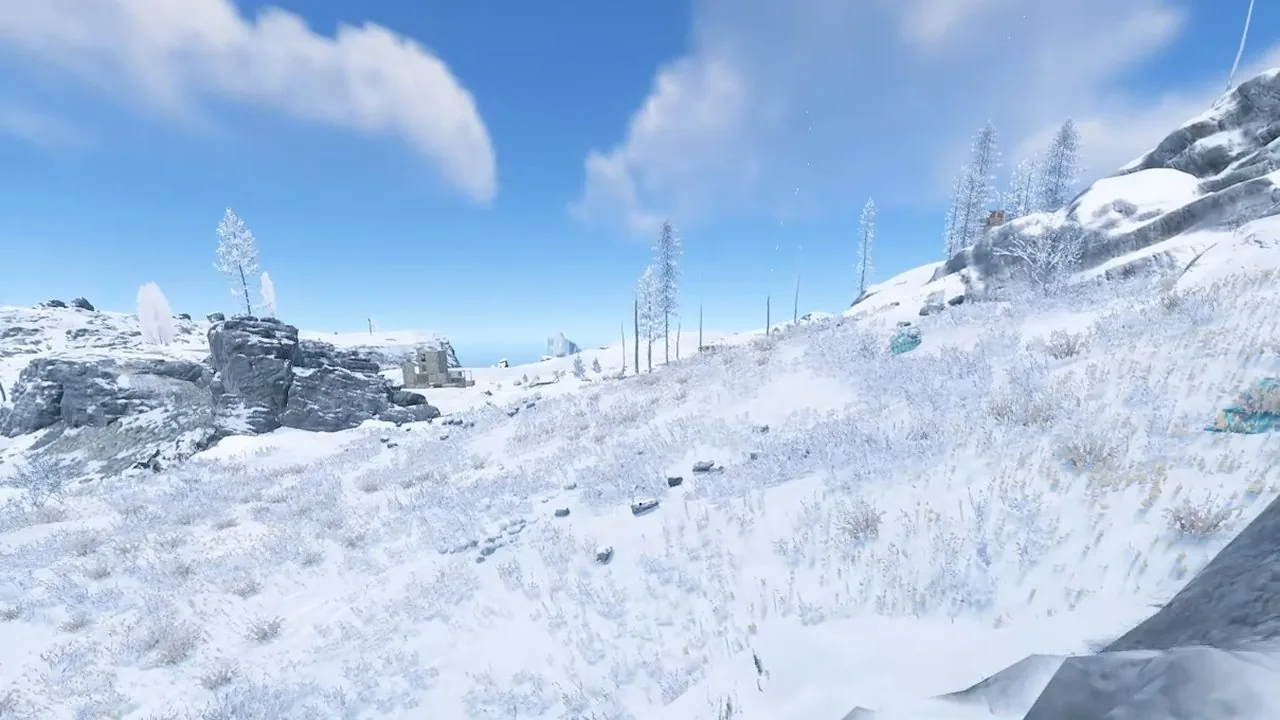
The snow biome is the hardest place in Rust to spot players in daylight. The ground is close to pure white, your monitor runs near its brightest, and anyone in light clothing almost disappears. The fix is not more brightness, it is less glare and more contrast. Here is how to set that up.
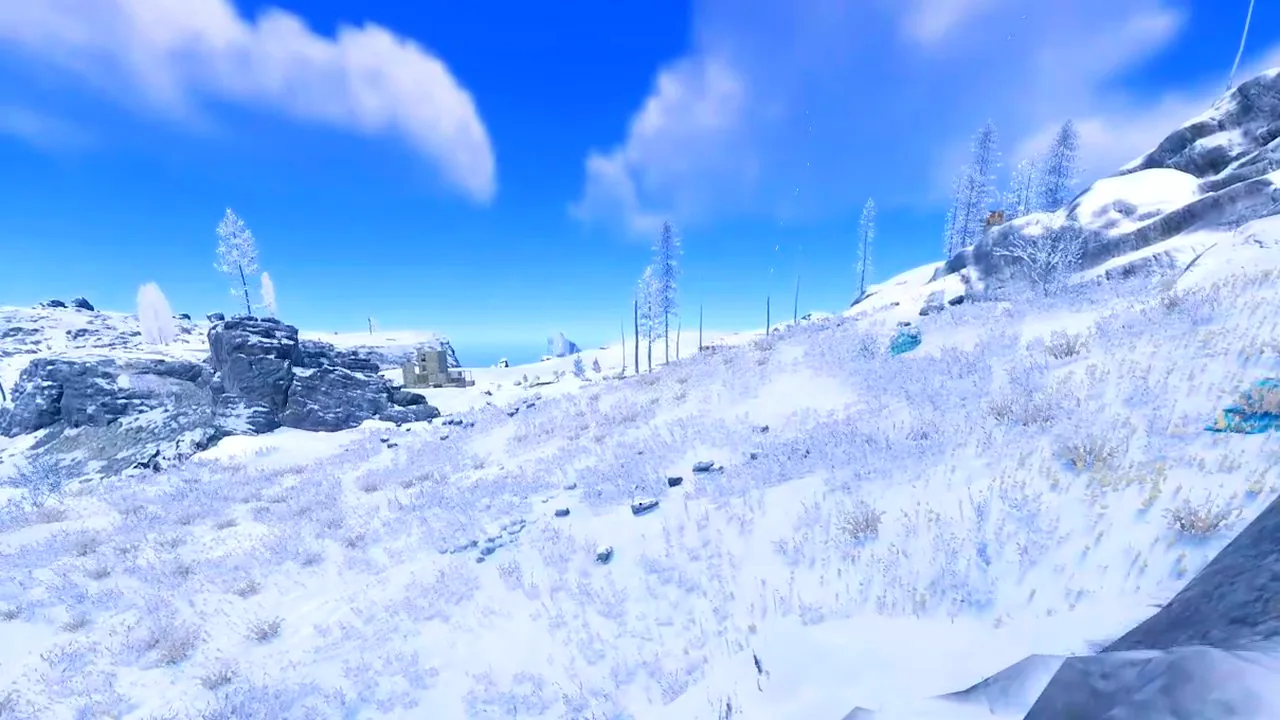
Why snow is so hard to read
Your eyes find players by contrast: a shape that is darker, lighter or a different color than what is behind it. Snow sits at the very top of your monitor's brightness range. When the ground is that bright, the small differences that show a player's outline get crushed into white. On top of that, snow scenes are blue-tinted, so cold-colored clothing has almost no contrast against the ground.
There are three things you can change: how bright the snow is, how much contrast the picture has, and how much color there is.
Step 1: Bring the snow off maximum brightness
The single biggest improvement is lowering brightness a little in snow. Even 5 to 10% brings the white ground down from the top of the range so detail comes back into it. You can do this with your monitor's brightness, in your GPU color settings, or with a screen filter.
Do not lower it so much that dark areas turn black. You want the snow to look white with visible texture, not grey.
Step 2: Add contrast
A small contrast boost of 5 to 10% pushes dark shapes darker against the white. Tree trunks, rocks, structures and players in dark clothing stand out harder. Too much contrast clips the snow back to pure white, so go slowly.
Step 3: A small saturation boost
A light saturation increase of about 15% helps colored clothing, sleeping bags, boxes and blood stand out. Snow is already cold blue, so heavy saturation turns everything a deep blue and makes it worse. Keep it modest.
- NVIDIA: Digital vibrance around 60 to 65% for snow, lower than for grass.
- AMD: Saturation around 115 to 125 in Adrenalin.
Step 4: Warmth
A slightly warmer picture makes skin tones, wood and orange or red items pop against the blue-white snow. Do not overdo it or the snow turns yellow.
Recommended snow settings
- Brightness: -5 to -10%
- Contrast: +5 to +10%
- Saturation: +10 to +15%
- Warmth: neutral to slightly warm
- Gamma: unchanged during the day
Monitor settings that help in snow
- Turn off dynamic contrast. It changes brightness as you look around, so snow keeps getting brighter and darker.
- Avoid "vivid" or "dynamic" picture modes. They push brightness and saturation to the top, which is exactly wrong for snow.
- Black level tools such as Black eQualizer matter less in daytime snow than at night.
Full monitor setup: best monitor settings for Rust.
The problem: snow settings are wrong everywhere else
Lower brightness and only a little saturation is perfect for snow and too dull for grassland and desert. If you set your GPU panel for snow, the rest of the map looks flat. If you set it for grass, snow glares. That is why switching settings per area matters in Rust.
PixelForge has a ready-made Snow look with less glare, a deep blue sky and white snow, and separate Desert, Green and Metro looks. You switch between them with a hotkey as you cross the map. You can compare the Snow look on a real Rust frame in the web simulator.
The red holo dot in snow
Snow also makes the red holo sight hard to see, because the dot is drowned in glare. Lowering brightness helps a little. A full fix is turning the dot dark: see Rust black holo.
Snow at night
At night the snow biome flips: the ground becomes one of the brightest things on screen while everything else turns black. Use night settings instead of your day snow settings. See how to see at night in Rust.
Test your snow settings in five minutes
Go to a snowy area in daylight with a friend, or use a spot with a dark object such as a tree trunk or a wooden wall in the distance. Look at it with your normal settings, then with your snow settings. You want three things: the snow still looks white with visible texture, dark objects stand out sharply, and the sky has not turned deep blue. If the snow looks grey, you lowered brightness too much. If dark objects lost detail, lower the contrast boost a little.
Common mistakes in snow
- Maximum digital vibrance: the snow and sky turn blue and clothing gets harder to read, not easier.
- Raising gamma in daylight: flattens the whole picture and adds more glare.
- Keeping night settings on at sunrise: snow becomes blinding.
A Snow look on a hotkey
PixelForge is a small Windows app that does all of this in one place, with a free 24-hour trial and no install.
Questions
How do I see better in snow in Rust?
Lower brightness 5 to 10%, raise contrast 5 to 10% and add only a small saturation boost. That brings detail back into the white ground so players stand out.
What digital vibrance should I use in Rust snow?
Around 60 to 65% NVIDIA digital vibrance, or about 115 to 125 AMD saturation. Snow needs less than grass because it is already blue.
Why do players disappear in snow in Rust?
Snow sits at the top of your monitor brightness range, so small differences that show a player outline get crushed into white, and light or cold-colored clothing has little contrast.
Should I use the same settings for snow and grass?
No. Snow needs less brightness and saturation than grass. Use a different setting per area or switch looks with a hotkey.
Does lowering brightness in snow make nights worse?
Yes, if you keep it on at night. Use your snow settings in daylight only and switch to night settings at dusk, or put each look on a hotkey.
Should I turn off bloom in snow?
Bloom adds glow around bright areas, and snow is bright almost everywhere. Turning bloom off usually makes snow cleaner and easier to read.
Is it safe?
PixelForge does not inject into games, touch game files or read game memory. It only changes how your screen looks and draws overlays. No tool can promise what every anti-cheat or server admin will accept, and some Rust servers ban external zoom tools, so check the rules and leave those features off if you are not sure.
More guides
- Best Rust color settings and filters for night and snow visibility
- Digital vibrance on AMD and Intel GPUs
- Best digital vibrance settings by game
- Best Rust graphics settings for FPS and visibility (2026)
- Best monitor settings for Rust and FPS games
- How to fix black bars with stretched resolution
- Best NVIDIA Control Panel settings for Rust
- Best AMD Adrenalin settings for Rust