Best Rust color settings and filters for night and snow visibility
Updated · PixelForge team
Rust is built to hide players. Brown clothing disappears in dry grass, white kits vanish in snow, and at night the whole map turns into one black shape. The right color settings fix most of that without touching the game and without costing you frames. This guide walks through every layer, from your monitor to per-area filters, with exact values to start from.

Why visibility in Rust is a color problem
Your eyes spot players by contrast: a shape that is a different color or brightness from what is behind it. Rust's art style keeps most of the map in narrow bands of brown, grey and pale green, and most clothing uses the same colors. When the difference between a player and the ground is only a few shades, your monitor and your eyes merge them. Good color settings do one thing: they stretch those few shades apart, so the player separates from the background.
There are three places to do that, and they stack: your monitor, your graphics driver and a screen filter. Work through them in that order.
Step 1: Set up your monitor first
Most of the gain comes before any software. Open your monitor's on-screen menu and check these settings:
- Picture mode: choose FPS, Standard or Custom. Avoid Cinema, Eco and Reading modes, which lower brightness or add a warm tint.
- Black level tool: called Black eQualizer (BenQ, Gigabyte), Black Stabilizer (LG) or Shadow Boost (ASUS). It lifts the darkest parts of the picture only. A middle value is the best start for Rust.
- Overdrive: use the normal or medium step. The highest step adds bright trails behind moving objects, which hides movement instead of showing it.
- Dynamic contrast: turn it off. It changes brightness scene by scene, so the same bush looks different every few seconds.
Step 2: Raise saturation, not brightness
Brightness lifts everything equally, including the ground, so the gap between a player and the grass stays the same. Saturation boosts colors that are already colored and leaves greys alone. Clothing, hazmat suits, sleeping bags and loot boxes gain color while rocks and concrete barely change. That is why nearly every Rust player who tunes their screen raises vibrance or saturation, not brightness.
- NVIDIA: NVIDIA Control Panel, Display, Adjust desktop color settings, Digital vibrance. The default is 50%. Most Rust players land between 65% and 80%.
- AMD: AMD Software: Adrenalin Edition, Display, Custom Color, Saturation. The default is 100. Start at 130 and go up to about 150.
- Intel: Intel Graphics Command Center or Arc Control, Display, Color, Saturation.
Driver settings have two limits. They apply to your whole desktop all the time, and they are one value for the whole map. The perfect number for grass is too much for snow. More on that in digital vibrance on AMD and Intel.
Step 3: The best Rust settings for snow
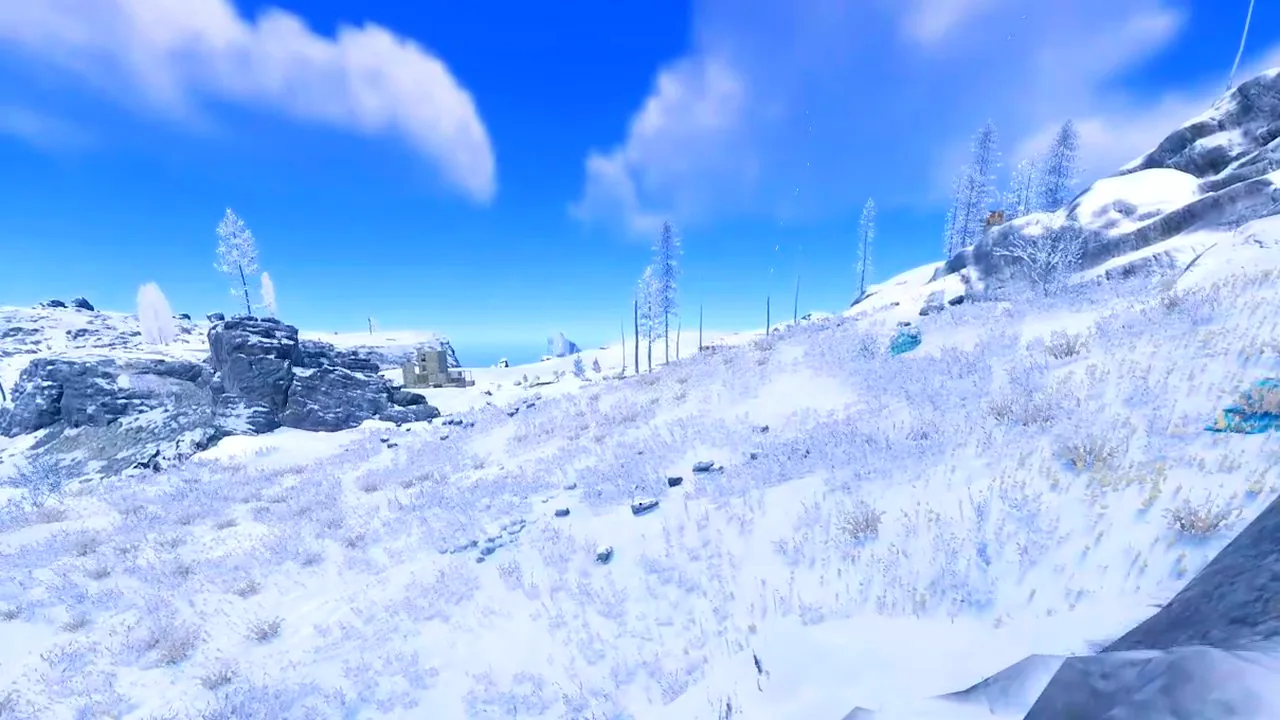
Snow is the hardest biome to read in daylight. The ground is close to pure white, so your monitor runs near its maximum brightness and fine detail gets lost in glare. Players in white or light grey kits become almost invisible.
- Brightness: slightly down, about 5 to 10%. This pulls the snow off the top of the brightness range so detail comes back.
- Contrast: up 5 to 10%, so dark clothing and tree trunks stand out harder against the white.
- Saturation: a small boost, about +15%. Too much turns the snow blue.
- Warmth: neutral or a touch warm. Snow scenes are already cold blue, and a slightly warmer picture makes skin tones and wooden structures pop.
Step 4: The best Rust settings for night
At night the opposite happens. Rust keeps night scenes in the darkest few steps of brightness, and most monitors cannot tell those steps apart, so a player in a field and the field itself both look black.
- Lift the shadows, not the whole picture. A black level tool or a night filter raises only the darkest tones. Raising overall brightness or gamma makes the night flat and grey and blinds you the moment someone lights a torch or fires a flare.
- Gamma: a moderate lift for dark areas, about +10 to +20%, if you use gamma at all.
- Saturation: a small boost, because dark scenes lose color first.
- Turn it off at sunrise. A night setting looks terrible in daylight, so it belongs on a hotkey.
The full night setup is in how to see better at night in Rust.
Step 5: Grass, desert and tunnels
- Grass and forest: saturation +25 to +40% and contrast slightly up, so green grass and brown clothing separate.
- Desert: saturation about +20% with warmth pulled back a little, so sand and tan clothing do not merge into one orange.
- Tunnels and monuments: lift the shadows like at night, but keep brightness normal so lights do not glare.
Do color filters cost FPS?
Monitor settings cost nothing: the monitor does the work. Driver vibrance costs nothing measurable either. Screen filters that run on the Windows display, instead of inside the game, usually cost very little, because the game itself renders exactly as before. Filters that inject into the game, such as shader injectors, can cost real frames and can also be a ban risk on servers with anti-cheat. If you use any filter, check your frames with an FPS counter before and after on the same spot of the map.
One look per area, switched with a hotkey
The real problem is that no single setting works everywhere. You cross from snow to desert in one fight, and night falls mid-raid. PixelForge ships a ready-made look for Night, Snow, Desert, Green and Metro tunnels and puts each one on a hotkey. You can drag a slider over a real Rust screenshot to compare before you apply, and one Normal colors button puts your screen back exactly as it was. It works on the Windows display, so nothing is injected into Rust and your FPS counter is built in to check the cost.
You can try the looks on real Rust frames right in your browser on the PixelForge homepage.
Want every area set up for you?
PixelForge is a small Windows app that does all of this in one place, with a free 24-hour trial and no install.
Questions
What is the best digital vibrance for Rust?
Most players use 65% to 80% NVIDIA digital vibrance, or 130 to 150 saturation in AMD Adrenalin. Go higher in grass and lower in snow so the sky and ground do not blow out.
How do I see better in snow in Rust?
Lower brightness slightly, raise contrast 5 to 10% and add only a small saturation boost. That brings detail back into the white ground so players in light kits stand out.
Should I raise brightness or saturation in Rust?
Saturation. Brightness lightens the ground as well as players, while saturation makes colored clothing stand out from grey and brown terrain.
Do color filters lower FPS in Rust?
Monitor and driver settings cost nothing measurable. Screen filters that work on the Windows display usually cost very little. Filters that inject into the game can cost more and can be a ban risk.
Do color filters work in Rust fullscreen?
Use borderless windowed mode for screen filters and overlays. NVIDIA digital vibrance also works in exclusive fullscreen.
Is it safe?
PixelForge does not inject into games, touch game files or read game memory. It only changes how your screen looks and draws overlays. No tool can promise what every anti-cheat or server admin will accept, and some Rust servers ban external zoom tools, so check the rules and leave those features off if you are not sure.
More guides
- Digital vibrance on AMD and Intel GPUs
- Best digital vibrance settings by game
- Best Rust graphics settings for FPS and visibility (2026)
- How to see players in snow in Rust
- Best monitor settings for Rust and FPS games
- How to fix black bars with stretched resolution
- Best NVIDIA Control Panel settings for Rust
- Best AMD Adrenalin settings for Rust